How We Stopped Arguing About Whose Tests Failed
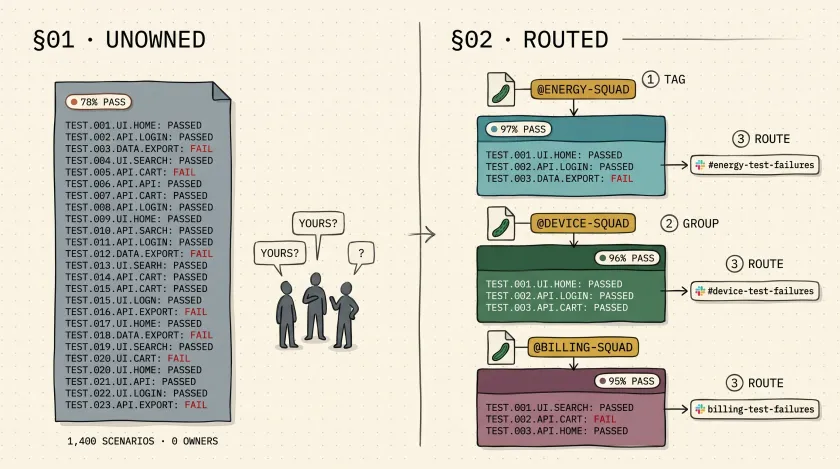
Table of Contents
On a mobile automation project with 6 squads and about 1,400 Cucumber scenarios, our nightly test report was a 40-page PDF that nobody read. When failures came in, the standup conversation went the same way every morning: “Is that our test or yours?” Nobody owned the failures because nobody could quickly tell which squad’s tests had broken. We spent 15–20 minutes every standup just triaging test ownership before anyone could start investigating.
The fix was simple. We tagged every feature file with the owning squad, then wired Extent Reports to automatically group and filter results by those tags. Standup triage dropped to under 3 minutes. Each squad could pull up their own failures in one click. Here’s exactly how we built it.
The Problem: Reports Nobody Owns
In a single-team project, test report ownership is obvious — it’s your team’s code, your team’s tests, your team’s failures. But when you scale to multiple squads sharing a single test suite, the report becomes a shared dumping ground.
Here’s what we were dealing with:
- 6 squads contributing scenarios to the same Cucumber-Appium repo
- ~1,400 scenarios running nightly against 3 device configurations
- One flat Extent Report with every test listed sequentially — no grouping, no filtering
- No way to answer “how is my squad’s test health?” without manually scanning the entire report
The result was predictable. Failures got ignored because nobody felt responsible. The suite’s pass rate drifted from 92% to 78% over two months because broken tests sat unfixed — each squad assumed the failures belonged to someone else.
Step 1: Tag Your Feature Files by Squad
The convention is straightforward. Every feature file gets a tag ending in -squad that identifies the owning team. Put it at the feature level so every scenario in the file inherits it.
@energy-squadFeature: Energy settings configuration
  @smoke  Scenario: User updates energy preference    Given the user is on the settings screen    When they select "Solar" as their energy source    Then the preference should be saved successfully
@regression Scenario: User views energy usage history Given the user is on the energy dashboard When they tap "Usage History" Then the last 30 days of usage should display@device-squadFeature: Device pairing flow
@smoke Scenario: User pairs a new thermostat Given the user is on the devices screen When they initiate pairing for "Smart Thermostat" Then the device should appear in the paired listTag at the feature level
If a squad owns the feature, they own all its scenarios. Tagging individual scenarios creates maintenance overhead and invites arguments about shared scenarios.
Keep one squad per feature file
If a feature file has scenarios owned by two different squads, that’s a code smell — split the file. Shared ownership means no ownership.
Make the suffix part of the contract
Always use @team-name-squad. The -squad suffix is what the code keys on, so deviating from the pattern (like @team-energy or @squad-energy) silently drops the test from squad filtering.
Step 2: Extract Squad Tags in Your Report Hook
Here’s where Extent Reports picks up the squad tags. In your AfterScenario hook (or equivalent adapter callback), iterate through the scenario’s tags and assign any squad tag as an Extent Report category.
public class ReportingHooks {    private static final ThreadLocal<ExtentTest> scenarioThreadLocal = new ThreadLocal<>();    private final List<String> squads = new ArrayList<>();
    @After    public void afterScenario(Scenario scenario) {        for (String tag : scenario.getSourceTagNames()) {            if (tag.toLowerCase().endsWith("-squad")) {                String squadName = tag.toLowerCase()                    .replace("@", "")                    .replace("-squad", "")                    .trim();                squads.add(squadName);                scenarioThreadLocal.get().assignCategory(tag);            }        }    }}
What’s happening here:
- Filter on the
-squadsuffix — this ignores functional tags like@smoke,@regression, or@wipand only picks up ownership tags. - Normalize the squad name — strip the
@prefix and-squadsuffix to get a clean team name (energy,device,billing) for any downstream processing. - Assign the full tag as an Extent Report category — keeping the
@energy-squadformat in the report makes it immediately recognizable and searchable. - Thread-safe with
ThreadLocal— critical if you’re running scenarios in parallel across threads, which you almost certainly are in a suite this size.
Step 3: Configure the Extent Report Adapter
If you’re using the ExtentCucumberAdapter, you’ll need the right configuration to enable category grouping. Add this to your extent.properties file.
extent.reporter.spark.start=trueextent.reporter.spark.out=target/extent-reports/spark-report.html
# Enable category view — this is what makes squad filtering workextent.reporter.spark.vieworder=dashboard,test,category,exception,author
The key line is vieworder including category. Without it, the squad tags get assigned but there’s no dedicated view to filter by them. I’ve seen teams implement the tagging correctly and then wonder why they can’t see squad groupings — this config line is usually what’s missing.
What the Report Looks Like
Once this is wired up, the Extent Report’s Category tab becomes your squad dashboard:
- Category: @energy-squad — 142 scenarios, 138 passed, 4 failed
- Category: @device-squad — 98 scenarios, 95 passed, 3 failed
- Category: @billing-squad — 210 scenarios, 201 passed, 9 failed
Each squad lead opens the report, clicks their tag, and sees only their tests. No scrolling through 1,400 results. No guessing. No standup arguments.
You can also cross-reference squad tags with functional tags. A scenario tagged @energy-squad @smoke shows up under both the squad category and the smoke category. This means your QA lead can answer “how are our smoke tests doing?” while each squad lead can answer “how are our tests doing?” — from the same report.
Taking It Further: Slack Notifications Per Squad
Once you have squad tags in your reporting pipeline, the natural next step is routing failure notifications to the right Slack channel. Instead of blasting one #qa-failures channel that everyone mutes, you send each squad’s failures to their own channel.
public class SlackNotifier {
    public void notifySquads(Map<String, List<TestResult>> resultsBySquad) {        for (Map.Entry<String, List<TestResult>> entry : resultsBySquad.entrySet()) {            String channel = "#" + entry.getKey() + "-test-failures";            List<TestResult> failures = entry.getValue().stream()                .filter(r -> r.getStatus() == Status.FAIL)                .collect(Collectors.toList());
            if (!failures.isEmpty()) {                sendSlackMessage(channel, formatFailureReport(failures));            }        }    }}
This maps @energy-squad failures to #energy-test-failures, @device-squad to #device-test-failures, and so on. If you want the full setup for color-coded Slack notifications with pass/fail indicators, I walked through that in our guide to sending test results to Slack.
The Results
Before
15–20 min
After
Under 3 min
Within two weeks of rolling this out:
- Standup triage time dropped from 15–20 minutes to under 3 minutes
- Mean time to fix broken tests went from 4.2 days to 1.1 days — because the owning squad saw the failure immediately
- Overall pass rate climbed back from 78% to 94% within a month — turns out tests get fixed fast when there’s clear ownership
- Zero “whose test is this?” conversations in standup. The report answered that question before the meeting started.
The biggest surprise wasn’t the tooling — it was the cultural shift. When each squad could see their own test health score in isolation, they started taking pride in it. One squad lead started a friendly competition for highest pass rate. That kind of ownership doesn’t come from process documents or Jira tickets. It comes from visibility.
What I’d Do Differently
If I were building this from scratch today, I’d make two changes:
-
Enforce squad tags in CI. Add a pre-merge check that rejects any feature file without a
-squadtag. We had a few orphaned feature files that slipped through without tags and showed up as “uncategorized” in the report. A simple lint rule would have caught those. -
Add squad-level metrics to the CI dashboard. Extent Reports are great for detailed results, but squad leads also want a trend line — “are my tests getting more or less stable over time?” Exporting squad pass rates to a Grafana dashboard or even a simple Google Sheet would close that loop.
Your Next Step
If your team has more than one squad contributing to a shared test suite, add -squad tags to your feature files this week. Start with just the tagging — you can wire up the Extent Report integration later. Even without automated reporting, having explicit ownership tags in your feature files forces the conversation about who owns what, and that conversation alone is worth the effort.
Don't miss a thing
Subscribe to get updates straight to your inbox.

No spam · Unsubscribe anytime