Stop Emailing Test Reports — Host Allure on Jenkins
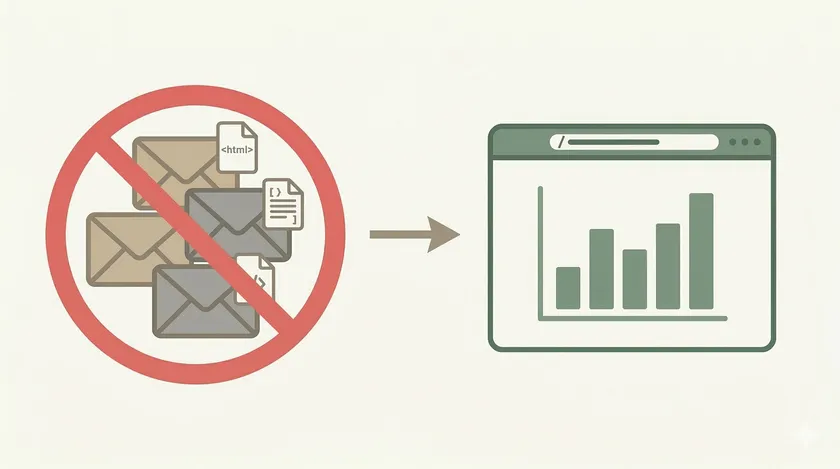
Table of Contents
Every morning, the same ritual. Open VDI. Wait for Outlook to load — 45 seconds on a good day. Find the email with last night’s test report. Download the HTML file. Open it in a browser. Scroll through 600 test results looking for failures. Now multiply that by 8 people on the QA team, every single day. Half the team stopped checking entirely. Failed tests sat unfixed for days because nobody wanted to fight through 6 clicks in a sluggish VDI just to see if their tests passed.
We were emailing Extent Report HTML files as attachments. It worked when we had 50 tests and 3 people. At 800+ tests across 4 squads, it became a liability. Reports piled up in inboxes with no date ordering. Someone would ask “what was the pass rate last Thursday?” and the answer was “let me search my email… maybe I deleted it.” Test history didn’t exist. Trend analysis was impossible. The report was a snapshot that died the moment a newer one arrived.
The fix took about 30 minutes: install the Allure Jenkins plugin, add one dependency to our Maven project, and configure a Freestyle job post-build action. The team went from emailed HTML files to a single Jenkins URL they bookmarked. Test history, trends, categories, failure details — all in one place, always current, zero downloads.
Why Emailed HTML Reports Don’t Scale
Before walking through the setup, here’s what breaks when your test report lives in email attachments:
- No history. Each email is an isolated snapshot. You can’t see if a test has been failing for 3 days or just started failing tonight. Trend analysis requires manually opening 5+ HTML files side by side.
- No search. Want to find every run where
LoginTestfailed this month? Good luck scrolling through attachments in a mailbox. - VDI friction kills adoption. In locked-down enterprise environments, opening an email attachment means: open Outlook (slow), find the email in the team inbox (slower), download the HTML file (prompts a security warning), open in browser (another prompt). Each friction point is a reason to skip it.
- No date ordering. Reports land in the team inbox as attachments with no consistent naming. Finding last Thursday’s regression run means scrolling through dozens of emails. There’s no timeline, no versioning — just a pile of HTML files sorted by whenever they arrived.
- Email size limits break delivery. As your test suite grows — more tests, more screenshots on failure — the HTML report attachment gets bigger. Most enterprise mail servers cap attachments at 10-25 MB. Once your report crosses that threshold, the email silently fails to send. No bounce notification, no error in Jenkins — the team just doesn’t get a report that morning and nobody notices until someone asks “did the tests run last night?” We hit this at around 600 tests with failure screenshots enabled.
- No commenting or collaboration. You can’t annotate a failure in an HTML file. Triage discussions happen in Microsoft Teams or Slack threads that get buried, disconnected from the actual report.
Allure on Jenkins solves every one of these. One URL. Persistent history. Built-in search and filtering. Accessible to anyone with Jenkins access — no downloads, no email digging.
Prerequisites
Before starting, you’ll need:
- Jenkins server with admin access to install plugins
- A Maven + TestNG project (ours used Java Playwright with Google Guice for DI)
- Allure command-line tool installed on the Jenkins machine (or let the plugin manage it — more on that below)
Step 1: Add Allure to Your Maven Project
First, add the Allure TestNG dependency and configure the Maven Surefire plugin to use the Allure listener.
<dependencies>    <!-- Your existing dependencies -->
    <dependency>        <groupId>io.qameta.allure</groupId>        <artifactId>allure-testng</artifactId>        <version>2.25.0</version>    </dependency></dependencies>
<build>    <plugins>        <plugin>            <groupId>org.apache.maven.plugins</groupId>            <artifactId>maven-surefire-plugin</artifactId>            <version>3.2.5</version>            <configuration>                <argLine>                    -javaagent:"${settings.localRepository}/org/aspectj/aspectjweaver/1.9.21/aspectjweaver-1.9.21.jar"                </argLine>            </configuration>        </plugin>    </plugins></build>
The AspectJ weaver is what Allure uses under the hood to intercept TestNG lifecycle events — @BeforeMethod, @AfterMethod, @Test — and capture them as report steps. Without this argLine, your tests will run but Allure won’t record anything.
Next, add the allure.properties file to tell Allure where to write raw results:
allure.results.directory=target/allure-resultsThat’s it on the project side. Run your tests with mvn clean test and you should see a target/allure-results directory with JSON files — one per test method. These raw results are what the Jenkins plugin reads to generate the HTML report.
Step 2: Install the Allure Jenkins Plugin
Open Jenkins Plugin Manager
Navigate to Manage Jenkins > Plugins > Available plugins. Search for “Allure” and install Allure Jenkins Plugin. Restart Jenkins when prompted.
Configure Allure Commandline
Go to Manage Jenkins > Tools. Scroll to the Allure Commandline section. Click Add Allure Commandline, give it a name like allure-2.25, and check Install automatically. The plugin downloads and manages the Allure CLI for you — no need to install it manually on the server.
The auto-install is a big deal in enterprise environments where you don’t always have permission to install software on the Jenkins server. The plugin handles it through Jenkins’ tool management, which runs under Jenkins’ own service account.
Step 3: Configure the Freestyle Job
This is where the emailed-HTML-to-portal switch actually happens.
Create or open your Freestyle job
If you already have a Freestyle job that runs mvn clean test, open its configuration. Otherwise, create a new Freestyle job and add a build step: Invoke top-level Maven targets with goals clean test.
Add the Allure post-build action
Scroll to Post-build Actions and click Add post-build action > Allure Report. In the Results field, enter the path to your raw results: target/allure-results. This must match what’s in your allure.properties.
Enable history (critical step)
In the Allure Report configuration, check Include previous results. This is what gives you test history across builds. Without it, each build’s report is isolated — you lose the trending and “this test has been failing for 5 builds” insight that makes Allure worth using.
Save and run the first build
Save the job configuration and trigger a build. Once it completes, you’ll see a new Allure Report icon in the left sidebar of the build page. Click it.
That first click is the moment. Instead of an emailed HTML file you had to download and open, you’re looking at a full interactive report — in the browser, on Jenkins, accessible to anyone on the team.
What You Get: The Allure Portal Experience
Here’s what the team sees when they open that Jenkins URL:
- Dashboard — Pass/fail summary, duration trends, severity breakdown. At a glance, you know if last night’s run was healthy.
- Suites view — Tests grouped by class/package. Click any test to see steps, attachments (screenshots on failure), and timing.
- Graphs — Trend charts showing pass rate and duration across the last N builds. This is where you catch slow degradation — “our suite went from 12 minutes to 23 minutes over the last month” becomes visible.
- Categories — Automatic grouping of failures by type: product defects, test defects, broken tests. Allure classifies failures based on the exception type, which cuts triage time.
- Timeline — Visual representation of test execution order and parallelism. We caught a thread-safety issue because the timeline showed two tests hitting the same page simultaneously — something that was invisible in Extent Reports.
The key difference from Extent Reports isn’t any single feature — it’s that the report lives at a stable URL. Build #147’s Allure report is always at https://jenkins.yourcompany.com/job/nightly-regression/147/allure/. Build #148 is the next number. No email searching. No file downloads. The entire team bookmarks the job page and checks results in 2 clicks.
Keeping Your Extent Reports (You Don’t Have to Choose)
Here’s something we learned: you don’t have to rip out Extent Reports. Our framework generated both. Extent Reports continued to go to email for stakeholders who preferred that format (product managers, mostly). Allure on Jenkins became the engineering team’s daily tool.
The Allure TestNG listener and the Extent Reports listener run side by side — they both hook into TestNG lifecycle events independently. No conflict. If you’re running a framework with both reporting libraries, just keep them both. Migrate your team’s daily workflow to the Jenkins URL, and let the email reports fade out naturally as people stop opening them.
Allure Annotations Worth Adding
Once the basic setup works, these annotations make the reports significantly more useful:
@Epic("Authentication")@Feature("Login")@Story("Valid credentials")@Severity(SeverityLevel.CRITICAL)@Test(description = "User logs in with valid email and password")public void testValidLogin() { loginPage.enterUsername("testuser@company.com"); loginPage.enterPassword("securePassword123"); loginPage.clickSubmit(); assertThat(dashboardPage.isDisplayed()).isTrue();}@Epic/@Feature/@Story— Creates a hierarchy in the Behaviors tab. Product managers can navigate by feature area instead of test class names.@Severity— Lets you filter for critical failures first. When 40 tests fail, you want to know which 5 are severity-critical before looking at the other 35.@Stepon helper methods — Allure captures each step in the report, giving you a readable execution trace without needing to read the code.
@Step("Enter username: {username}")public void enterUsername(String username) {    page.locator("[data-testid='username']").fill(username);}
@Step("Click submit button")public void clickSubmit() {    page.locator("[data-testid='submit']").click();}
With @Step annotations, a failed test’s report reads like a log: “Enter username > Enter password > Click submit > Assert dashboard is displayed — FAILED.” No guessing where it broke.
Before
Email attachment in VDI Outlook — 6+ clicks, no history, files lost in inboxes
After
One Jenkins URL — 2 clicks, full history, trends, always available
What I’d Do Differently
First, I’d add Allure from day one, not after the framework was already built around Extent Reports. We spent time maintaining two reporting systems in parallel when one would have been enough. If you’re starting a new framework, pick Allure and skip Extent Reports entirely — the Jenkins integration alone makes it the better choice for team visibility.
Second, I’d set up Slack notifications that include the Allure report URL directly. We eventually did this, but for the first few weeks we were still sending Slack messages without the link. A Slack notification that says “Nightly regression: 94% pass rate — View Report” is the perfect nudge. The summary tells you if you need to care, the link takes you straight to details.
Third, I’d configure Allure’s categories.json from the start to classify failures properly. Out of the box, Allure groups all failures together. With a custom categories file, you can separate “product defects” (assertion failures) from “test infrastructure issues” (timeouts, element not found) — which changes triage completely.
[ { "name": "Product Defects", "matchedStatuses": ["failed"], "messageRegex": ".*expected.*but was.*" }, { "name": "Infrastructure Issues", "matchedStatuses": ["broken"], "messageRegex": ".*(Timeout|Connection refused|Element not found).*" }]Your Next Step
If your team is still emailing test reports — or worse, if people have stopped checking them entirely — install the Allure Jenkins plugin today. It’s a 30-minute setup that permanently solves the “nobody looks at the report” problem. One URL, full history, zero friction. Your automation server is already running the tests — now make the results actually visible.
Get weekly QA automation insights — no fluff, just battle-tested strategies from 10+ years in the trenches.
Can I use Allure with a Jenkins Pipeline (Jenkinsfile) instead of a Freestyle job?
Yes. In a declarative pipeline, add allure([includeProperties: false, jdk: '', results: [[path: 'target/allure-results']]]) in your post { always { } } block. The Freestyle approach is simpler for teams already using Freestyle jobs, but pipelines work identically. The Allure plugin handles both.
Does Allure replace Extent Reports completely?
It can, but it doesn’t have to. Both reporting libraries hook into TestNG independently, so you can generate both reports from the same test run. In practice, once the team starts using the Jenkins Allure portal, the emailed Extent Reports stop getting opened. Let adoption happen naturally rather than forcing a cutover.
How much disk space does Allure history use on Jenkins?
Each build’s Allure results are typically 1-5 MB depending on test count and attachments (screenshots, logs). History is stored in the Jenkins build directory. With 800 tests and 90 days of nightly builds, expect around 300-500 MB total. Configure Jenkins to discard old builds (e.g., keep last 90 builds) to keep this manageable — the Allure plugin respects Jenkins’ build retention settings.
Don't miss a thing
Subscribe to get updates straight to your inbox.

No spam · Unsubscribe anytime